Move CRM in an afternoon, not a weekend.
Bring your couples, weddings and enquiries across from Studio Ninja, HoneyBook or a spreadsheet without retyping a single one. Do it yourself in three steps, or hand the job to your AI assistant.
Three steps, and you check everything first.
- 1
Export a CSV from your old CRM
One file for clients, one for jobs or enquiries, and one for invoices if you want your payment history too. Import them in that order so couples and invoices match up.
- 2
Upload it and check the columns
Settings → Import from another CRM. Pick what the file holds and where it came from. FrameFlow guesses which column is which, and any guess can be fixed with one dropdown.
- 3
Preview, then import
Every row is shown with what will happen to it: created, linked to a couple you already have, or skipped. Nothing is saved until you press Import.
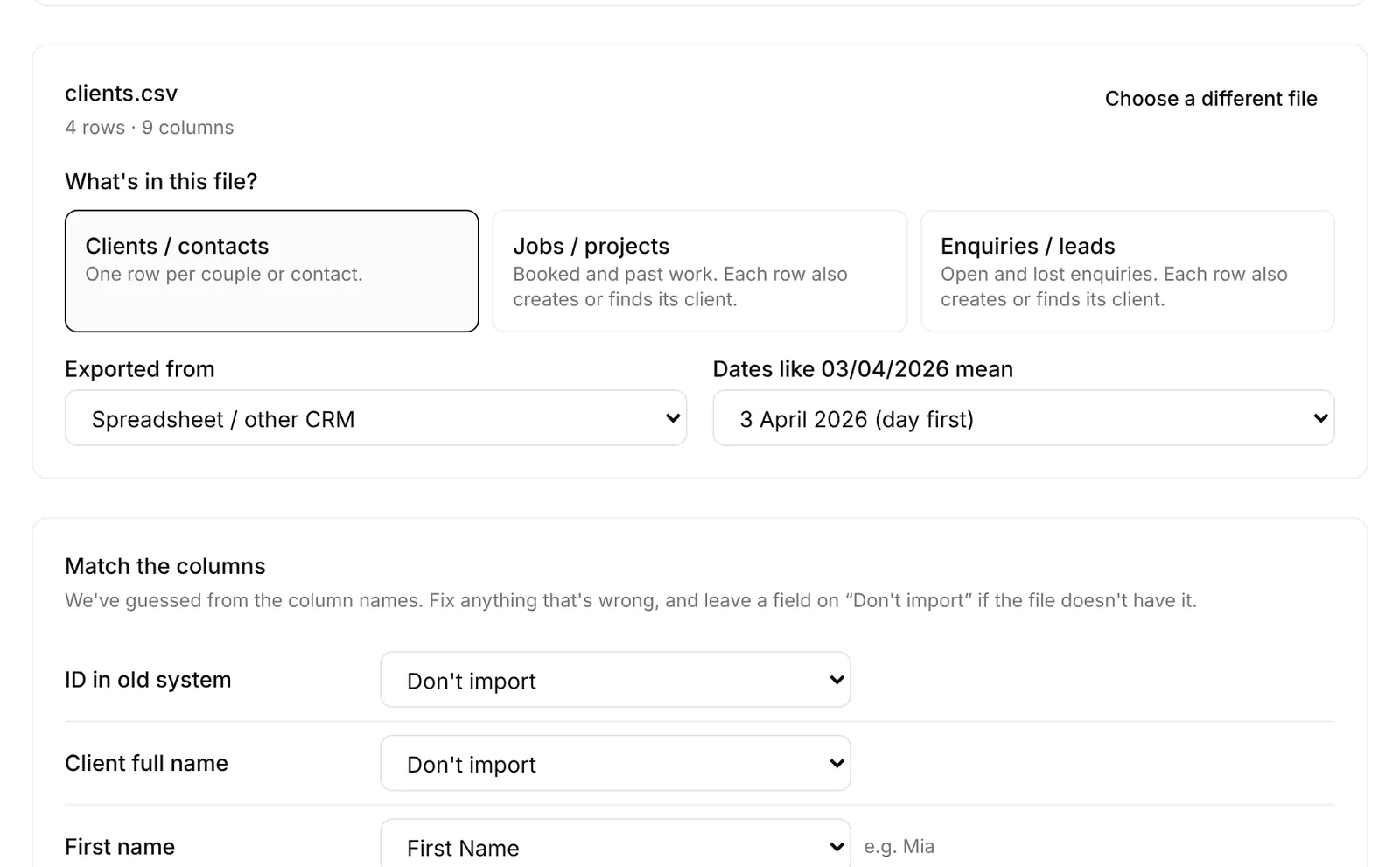
Where you're coming from.
Studio Ninja
Clients, Jobs or Invoices list → Export to CSV.
Recognised automatically from its column names, with day-first dates.
HoneyBook
Contacts or Projects → Export, and Reports → Payments for invoice history.
Recognised automatically from its column names, with month-first dates.
Anything else
Dubsado, Táve, 17hats, Google Sheets, Excel or Numbers: save or export as CSV.
Pick “Spreadsheet / other CRM” and match the columns yourself. Common names are guessed for you.
What comes across
- Couples: both names, emails and phone numbers
- Address, Instagram, lead source and tags
- Notes, and the date they first enquired
- Jobs: name, type, status, event date, start time, venue and value
- Enquiries, both open and lost
- Invoices with what was paid, part-paid or still owed, linked to the couple's job
- Payment schedules: instalments on one invoice, with each payment and its date
- The ID from your old system, so a re-run skips what's already in
What stays behind
- Signed contracts and quotes
- Invoice PDFs and card details held by your old payment processor
- Email threads and files
- Questionnaire answers, templates and workflows
Download signed contracts and invoices from your old CRM before you cancel it.
Safe to run
- Nothing is saved until you've seen the preview
- No emails go to couples and no automations fire during an import
- Re-importing the same file skips rows that are already in
- Up to 5,000 rows per file
- On the Free plan, past and delivered weddings import without limit; 3 active jobs at a time
Let your AI assistant do the moving.
FrameFlow has its own MCP server, the standard way AI assistants connect to apps. In Claude, add a connector with the address from Settings → API & MCP, sign in and press Allow. No key to copy. Then give it your old CRM's export. Messy spreadsheets, odd column names and notes crammed into one cell are fine: it reads them the way you would.
“Here's my Studio Ninja export. Add every couple to FrameFlow. Weddings before today are delivered jobs, the rest are enquiries. Put the notes column on each job, bring over every invoice with what they've paid, and draft an invoice for anyone with a balance still owing.”
It works through the file, skips couples you already have, and tells you what it added, with a link to each record. Past invoices arrive paid or part-paid with their payments; new ones stay as drafts until you open them and press send.
What it can do
- Create couples, matching on email so nobody is added twice
- Add past weddings as delivered jobs, with date, venue and value
- Add open enquiries as leads, with the wedding date and venue
- Carry notes across onto the couple, job or enquiry
- Bring over past invoices with every payment already made, paid or part-paid
- Record payments you've received since, so balances are right
- Draft invoices for balances still owed, for you to check and send
- Add tasks, like “re-send contract to Sofia & Daniel”
What it can't
- Log in to your old CRM: you give it the export
- Send anything to a couple, or charge a card
- Create quotes or contracts
- Delete anything, or change your settings
Every change is logged in the activity feed under your name. Once you're in, the same connection answers questions like “who still owes a balance?” or “what's on this month?”.
Before you switch
How long does switching take?
Exporting and importing a few hundred couples takes minutes. Most of an afternoon goes on the parts an import can't do: setting up packages, payment details and your contract template.
What about couples who are mid-booking?
Import them as clients and jobs, then send their next invoice or contract from FrameFlow so they get a portal link. Keep the signed PDFs from your old CRM for your records.
Which AI assistants work with FrameFlow?
Claude (on the web, the desktop app and Claude Code) connects in one click: add FrameFlow as a connector, sign in and press Allow. Cursor, Codex and other MCP apps use an API key; Settings → API & MCP has the setup for each.
Is it safe to let an AI write to my workspace?
It can only do what you allowed when you connected it. Read-only access can look but not change anything. With read and write, every change is logged in the activity feed under your name, and nothing is ever sent to a couple, charged or deleted. Disconnect it any time in Settings → API & MCP.
Stuck on an export? Email hello@stratex.studio and a person will help you bring it across.